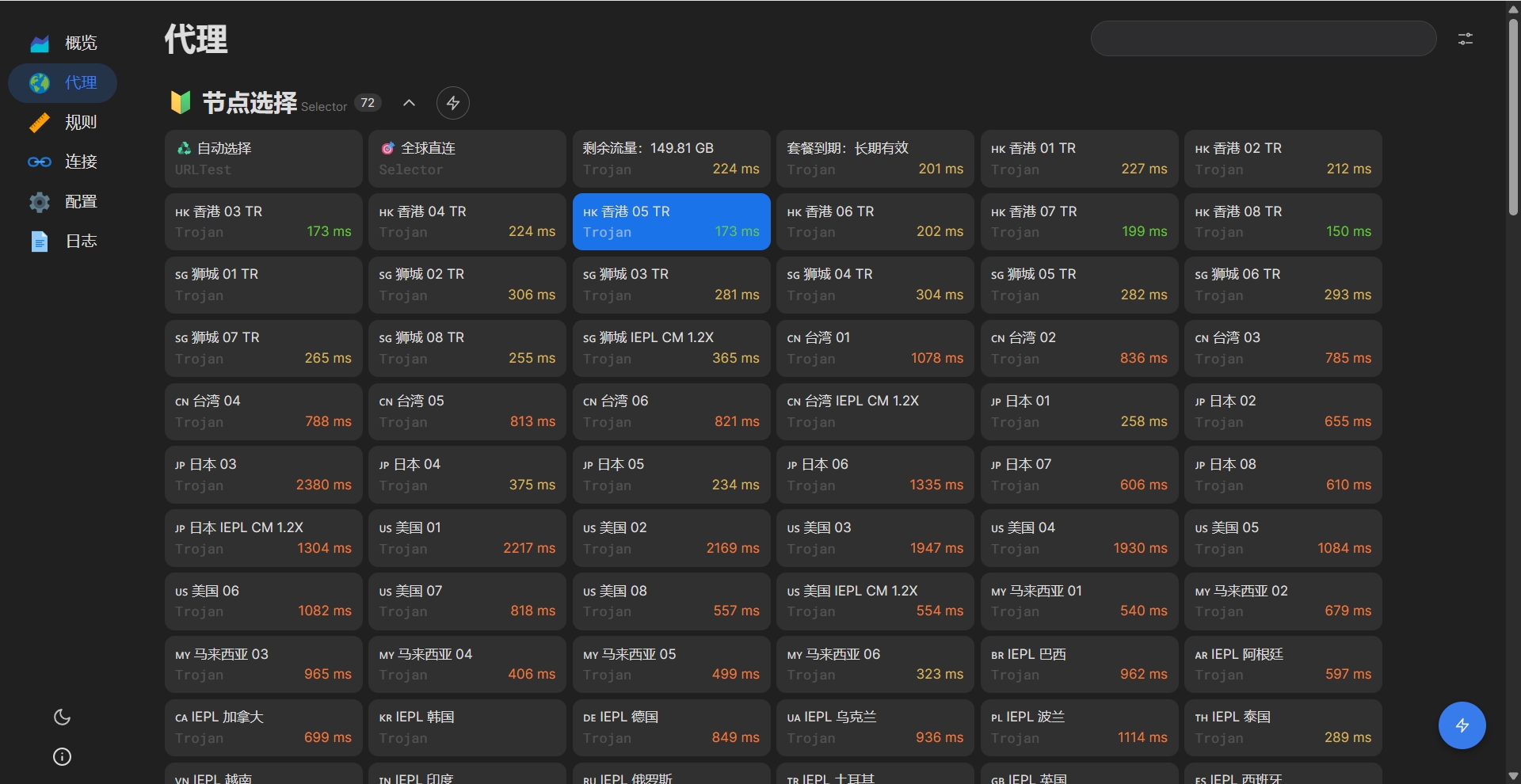
先废话一下,windows科学上网大家应该都会了,windows装一个docker desktop,就可以下载外面的镜像了,不过dockerdesktop在使用时,会占用非常多的磁盘,直接给我的C盘打满了,pull多了自然就占用多,不过跟linux不同的是,windows的docker执行docker system prune -a时,不会处理虚拟docker磁盘,仍然保持为最大的状态,即:有多少用多少,你下载了我就扩容磁盘,你清理了我不缩容磁盘。
如果仅仅这样,其实还不怎么关心,那便又如何呢,放到D盘就行了呗,我的D盘基本都是空的,一顿操作后,成功将docker desktop、WSL等等看不懂的东西配置完成之后,下载了个镜像ok了,不过不久后,我的电脑重启过后再次运行DockerDesktop,WSL崩溃了,由于对DockerDesktop和这个WSL不是很懂,只能通过其他手段来下载外面的镜像了。
先将我的DockerDesktop卸载,于是GPT一下,除了DockerDesktop之外,还有没有其他产品,可以在windows下载镜像,搜索出来基本都是要通过WSL虚拟linux环境来下载镜像的,
全部放弃。
于是,就有了今天这篇文章,使用我自己的一台服务器,也是本篇文章所在的服务器,给他的Docker,配置一个科学上网~
在工具选择上,我使用的一直都是Clash,像我的windows,Android都是用的Clash。本着不重复造轮子的想法,先去github搜一搜现成的轮子,果然,搜索到一个ClashForLinux,这是一个通过Shell运维的linux端Clash,直接克隆下来,按照README操作一番后,直接失败了。果然不出我所料,两年没维护了,估计很多东西有了变动吧。
首先遇到的一个问题是,他的几个脚本一直在报错,提示proxy_on命令找不到,我翻阅一下后,他是定义了一个函数,直接通过函数名调用的,然后将这个函数定义到了profile里面,果然是大佬,思路就是奇特。
 1
 2
 3
 4
 5
 6
 7
 8
 9
10
11
12
13
14
15
16
17
18
|
# 添加环境变量(root权限)
cat>/etc/profile.d/clash.sh<<EOF
# 开启系统代理
function proxy_on() {
    export http_proxy=http://127.0.0.1:7890
    export https_proxy=http://127.0.0.1:7890
    export no_proxy=127.0.0.1,localhost
    echo -e "\033[32m[√] 已开启代理\033[0m"
}

# 关闭系统代理
function proxy_off(){
    unset http_proxy
    unset https_proxy
    unset no_proxy
    echo -e "\033[31m[×] 已关闭代理\033[0m"
}
EOF
|
既然报找不到命令,那简单,我把他定义的两个函数直接扒下来,写成同名的文件里,加上执行权限,丢到path里就可以调用了。像这样:
 1
 2
 3
 4
 5
 6
 7
 8
 9
10
11
12
13
|
[root@qingfeng clash]# cat /bin/proxy_on
#!/bin/bash
export http_proxy=http://127.0.0.1:7890
export https_proxy=http://127.0.0.1:7890
export no_proxy=127.0.0.1,localhost
echo -e "\033[32m[√] 已开启代理\033[0m"

[root@qingfeng clash]# cat /bin/proxy_off
#!/bin/bash
unset http_proxy
unset https_proxy
unset no_proxy
echo -e "\033[31m[×] 已关闭代理\033[0m"
|
再次运行脚本,果然不再报错了,继续进行下去,执行脚本,贴上我的订阅地址,果然,又启动失败了,根本没有监听,翻阅了一下日志,提示在下载东西连不上,我都还没科学上网,自然下载不到了,我又翻了很多文档,只能先更新一下clash的二进制文件,新的二进制文件果然通过了,只不过都是空的,页面没有可用通道,什么都没有,经查原来是我的订阅链接加过密了,不能直接使用,只能通过我的windows上的yaml拉过来使用了,然后把脚本中更新订阅的逻辑删掉,也就是这一段注释掉:
 1
 2
 3
 4
 5
 6
 7
 8
 9
10
11
12
13
14
15
16
17
18
19
20
21
22
23
24
25
26
27
28
29
30
31
32
|
## 检查url是否有效
#echo -e '\n正在检测订阅地址...'
#Text1="Clash订阅地址可访问!"
#Text2="Clash订阅地址不可访问!"
#for i in {1..10}
#do
#        curl -o /dev/null -s -m 10 --connect-timeout 10 -w %{http_code} $URL | grep '[23][0-9][0-9]' &>/dev/null
#        ReturnStatus=$?
#        if [ $ReturnStatus -eq 0 ]; then
#                break
#        else
#                continue
#        fi
#done
#if_success $Text1 $Text2 $ReturnStatus
#
## 拉取更新config.yml文件
#echo -e '\n正在下载Clash配置文件...'
#Text3="配置文件config.yaml下载成功!"
#Text4="配置文件config.yaml下载失败,退出启动!"
#for i in {1..10}
#do
#        #curl -s -o $Temp_Dir/clash.yaml $URL
#        wget -q --no-check-certificate -O $Temp_Dir/clash.yaml $URL
#    ReturnStatus=$?
#        if [ $ReturnStatus -eq 0 ]; then
#                break
#        else
#                continue
#        fi
#done
#if_success $Text3 $Text4 $ReturnStatus
|
果然,配完之后运行起来了。

简单测试了下,结果如下:
 1
 2
 3
 4
 5
 6
 7
 8
 9
10
11
12
|
[root@qingfeng clash]# proxy_off
[×] 已关闭代理
[root@qingfeng clash]# curl -i https://www.google.com > /dev/null
  % Total    % Received % Xferd  Average Speed   Time    Time     Time  Current
                                 Dload  Upload   Total   Spent    Left  Speed
  0     0    0     0    0     0      0      0 --:--:--  0:02:07 --:--:--     0curl: (7) Failed to connect to 2001::1: Network is unreachable
[root@qingfeng clash]# proxy_on
[√] 已开启代理
[root@qingfeng clash]# curl -i https://www.google.com > /dev/null
  % Total    % Received % Xferd  Average Speed   Time    Time     Time  Current
                                 Dload  Upload   Total   Spent    Left  Speed
100 18396    0 18396    0     0  13288      0 --:--:--  0:00:01 --:--:-- 13291
|
科学上网ok了还不行,经测试,docker并不会自动读取系统环境变量里的代理配置,需要自行配置,如下:
 1
 2
 3
 4
 5
 6
 7
 8
 9
10
11
12
13
14
15
16
17
18
19
20
21
22
23
24
25
26
27
28
29
30
31
32
33
34
35
36
37
38
39
40
41
42
43
44
45
46
47
48
49
50
51
52
53
54
|
cat /usr/lib/systemd/system/docker.service
[Unit]
Description=Docker Application Container Engine
Documentation=https://docs.docker.com
After=network-online.target docker.socket firewalld.service containerd.service time-set.target
Wants=network-online.target containerd.service
Requires=docker.socket

[Service]
Environment="HTTP_PROXY=http://127.0.0.1:7890/"
Environment="HTTPS_PROXY=http://127.0.0.1:7890/"
Environment="NO_PROXY=http:localhost,127.0.0.1,registry.cn-hangzhou.aliyuncs.com,registry-vpc.cn-hangzhou.aliyuncs.com"
Type=notify
# the default is not to use systemd for cgroups because the delegate issues still
# exists and systemd currently does not support the cgroup feature set required
# for containers run by docker
ExecStart=/usr/bin/dockerd -H fd:// --containerd=/run/containerd/containerd.sock
ExecReload=/bin/kill -s HUP $MAINPID
TimeoutStartSec=0
RestartSec=2
Restart=always

# Note that StartLimit* options were moved from "Service" to "Unit" in systemd 229.
# Both the old, and new location are accepted by systemd 229 and up, so using the old location
# to make them work for either version of systemd.
StartLimitBurst=3

# Note that StartLimitInterval was renamed to StartLimitIntervalSec in systemd 230.
# Both the old, and new name are accepted by systemd 230 and up, so using the old name to make
# this option work for either version of systemd.
StartLimitInterval=60s

# Having non-zero Limit*s causes performance problems due to accounting overhead
# in the kernel. We recommend using cgroups to do container-local accounting.
LimitNPROC=infinity
LimitCORE=infinity
# Older systemd versions default to a LimitNOFILE of 1024:1024, which is insufficient for many
# applications including dockerd itself and will be inherited. Raise the hard limit, while
# preserving the soft limit for select(2).
LimitNOFILE=1024:524288

# Comment TasksMax if your systemd version does not support it.
# Only systemd 226 and above support this option.
TasksMax=infinity

# set delegate yes so that systemd does not reset the cgroups of docker containers
Delegate=yes

# kill only the docker process, not all processes in the cgroup
KillMode=process
OOMScoreAdjust=-500

[Install]
WantedBy=multi-user.target
|
重启一下docker
1
2
|
systemctl daemon-reload
systemctl restart docker
|
测试下载dockerhub镜像
1
2
3
4
5
6
7
8
9
|
[root@qingfeng clash]# docker pull qingpan/rnacos:stable
stable: Pulling from qingpan/rnacos
dad67da3f26b: Pull complete
50b0404065e8: Pull complete
3070000b156c: Pull complete
4f4fb700ef54: Pull complete
Digest: sha256:3120aae61ed768755d0675cb6500cfaa09df35bd821418c9309b1777dc46d8f9
Status: Downloaded newer image for qingpan/rnacos:stable
docker.io/qingpan/rnacos:stable
|
到这里就完成了。
 CloudNativeQingFeng